
How it works
Features
- ✅ No app required – Just a script tag and webhooks
- ✅ Automatic tracking – Every checkout and order is tracked
- ✅ Full attribution – Works across sessions (90-day cookie)
- ✅ Real-time sync – Events appear instantly
- ✅ Multi-currency – Supports all Shopify currencies
Prerequisites
Before you start:- Create a Taapit deeplink pointing to your Shopify store or a product page
- Enable conversion tracking on your link in the Taapit dashboard
Installation
1
Add the script tag to theme.liquid
Copy this script tag:Then add it to your theme:
- In Shopify Admin, go to Online Store → Themes
- Click Customize → Edit code on your active theme
- Open the theme.liquid file
- Paste the script just before the
</head>closing tag, then save
ta_tid tracking ID from Taapit links and stores it in a cookie and localStorage for 90 days. It also attaches the tracking ID to cart attributes so it survives through to the order.2
Configure Webhooks
You need to create 3 webhooks in Shopify pointing to your Taapit webhook URL.Your webhook URL (found in your Taapit dashboard under Settings → Analytics → Shopify):Steps to configure in Shopify:
- In Shopify Admin, go to Settings → Notifications
- Scroll down to the Webhooks section and click Create webhook
- Choose an event: Order payment → paste the webhook URL → save
- Repeat for Checkout creation
- Repeat for Checkout update
3
Verify the setup
- Visit your store from a Taapit link (you should see
?ta_tid=xxxin the URL) - Check browser DevTools → Application → Cookies for
ta_tid - Add a product to the cart and proceed to checkout
- Check the Analytics tab in Taapit — a Lead event should appear
- Complete a test order — a Sale event should appear
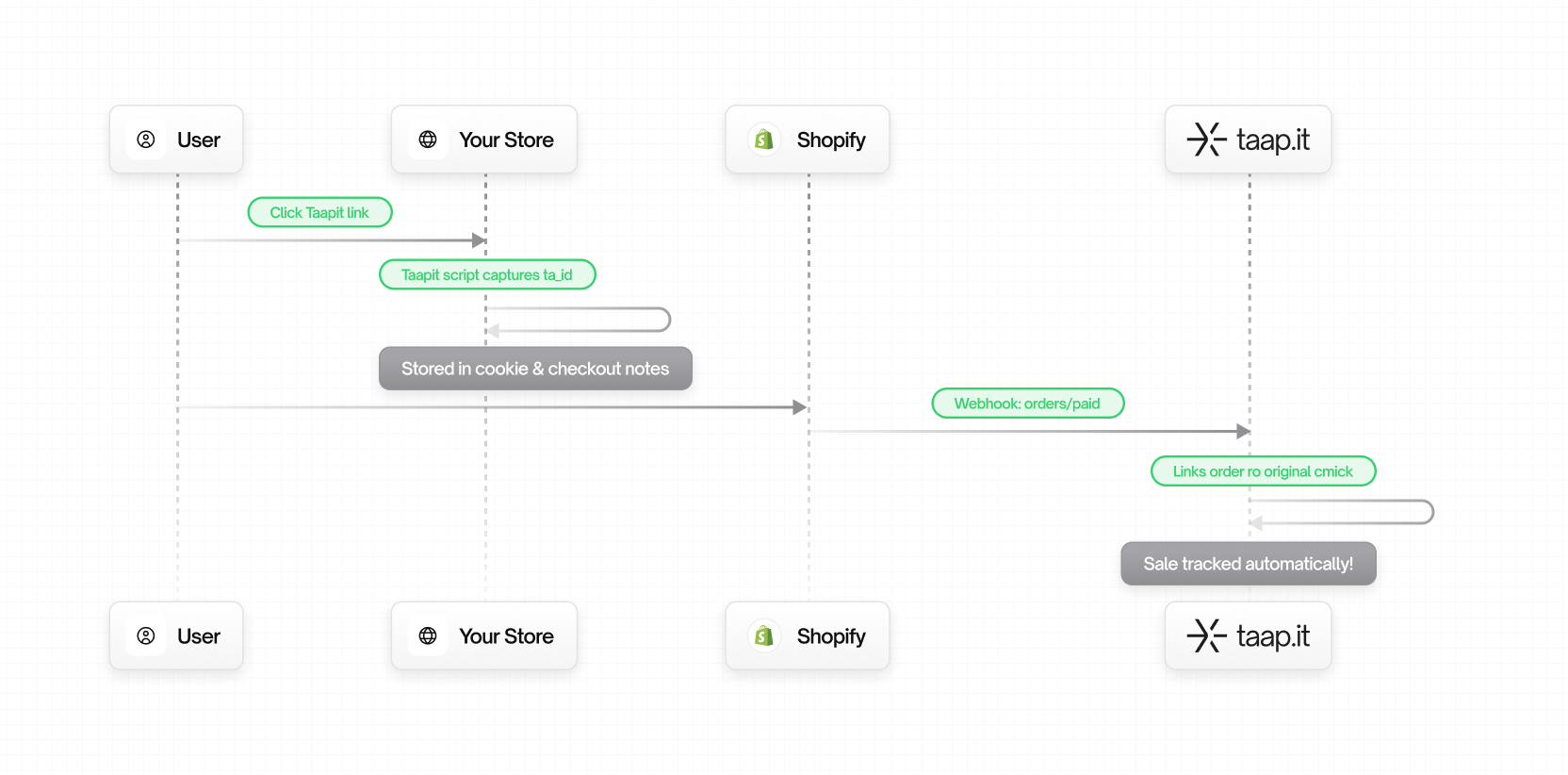
How Tracking Works
- Visitor arrives via Taapit link with
?ta_tid=xxx - Script captures the
ta_tidand stores it in a cookie and localStorage - Script adds the tracking ID to cart attributes (persists through checkout)
- Customer clicks Checkout — the tracking ID is forwarded via cart attributes
- Order webhook sends order details + tracking ID to Taapit
- Conversion recorded and attributed to the original link
Tracked Events
Troubleshooting
Conversions not appearing
Conversions not appearing
- Check that the script tag is present in your theme.liquid (before
</head>) - Check that all 3 webhooks are correctly configured with your workspace ID
- Check that the Buy Now button is hidden — orders placed through it cannot be tracked
- Verify the
ta_tidcookie is set in your browser DevTools
Theme compatibility
Theme compatibility
Works with all Shopify themes that allow editing theme.liquid. For headless setups (Hydrogen, custom storefronts), use the Manual Client-side Integration instead.
Next Steps
Stripe Integration
Also using Stripe? Add the Stripe integration.
Create Your First Link
Create a Taapit link to start tracking.